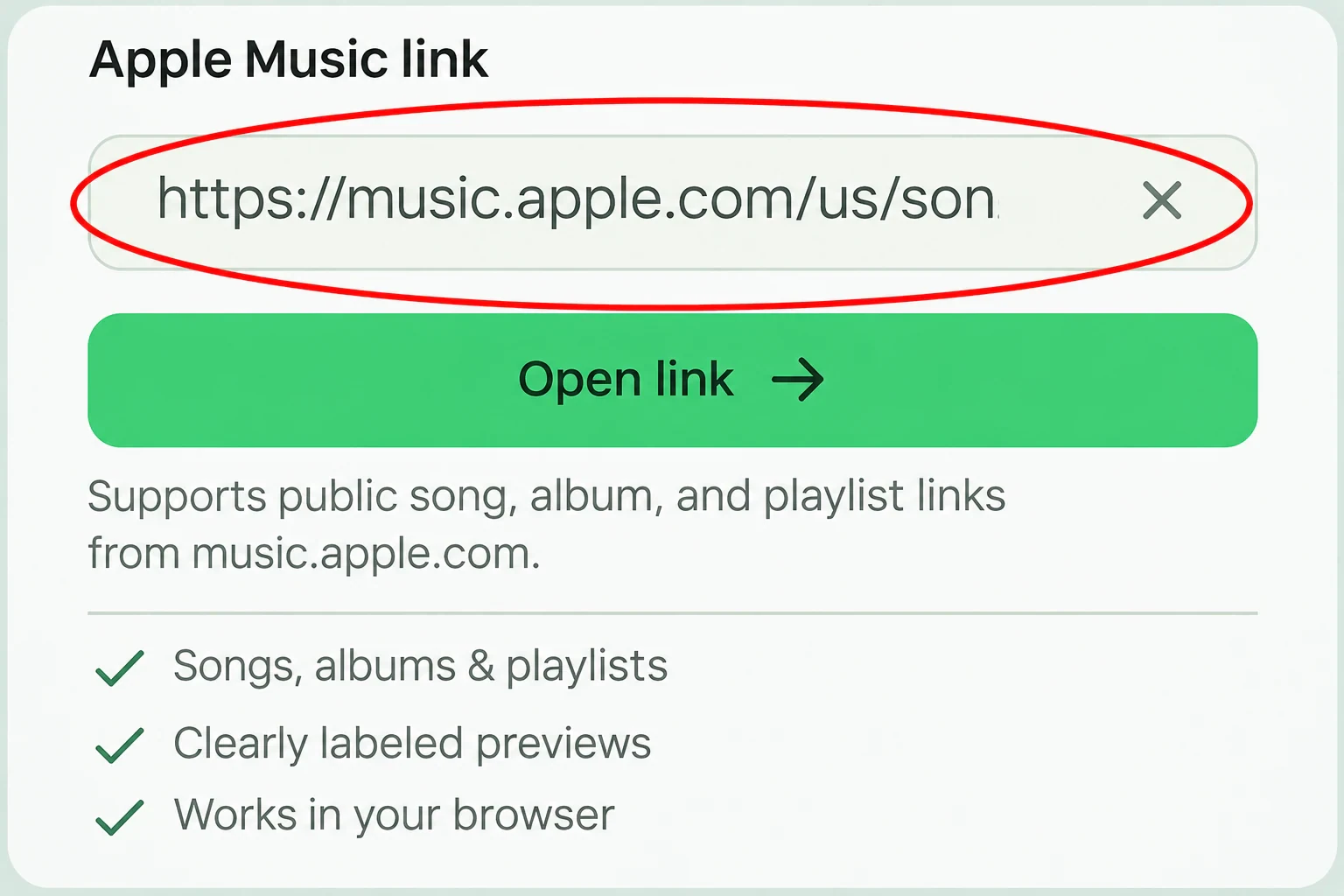
One link. Your music, in view. Explore song details, browse an album or playlist, and listen to available previews.
Songs, albums & playlists
Clearly labeled previews
Works in your browser
An online Apple Music Downloader, with the details in view
MusicFab’s Apple Music Downloader brings a public music link into one clear view. Open a song, album, or playlist to find its artwork, artists, track order, and available previews in your browser.
Copy a link from Apple Music or open one someone shared. Check the album name and track length to distinguish a studio recording from a live version, remix, or different release. Browse a collection’s returned tracks before opening the original music page.
Public-link lookup and available previews are free to use. Choose Download MP3 when a complete matching recording is available. The track length describes the full recording; the preview remains a short sample.
FROM LINK TO LISTENING
How to open an Apple Music link
Start with a public share link. We’ll show what’s available for that music.
01
Copy your music link
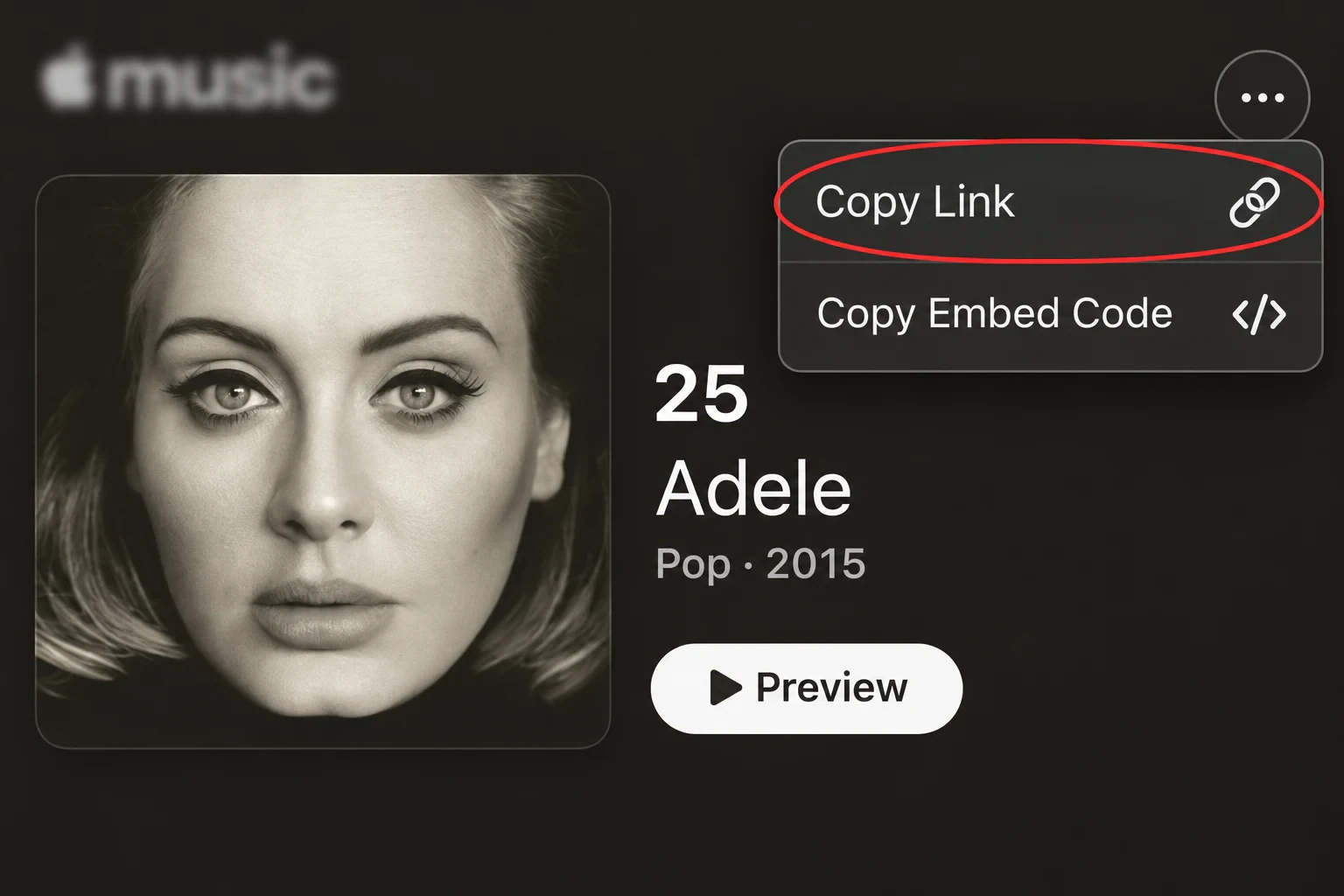
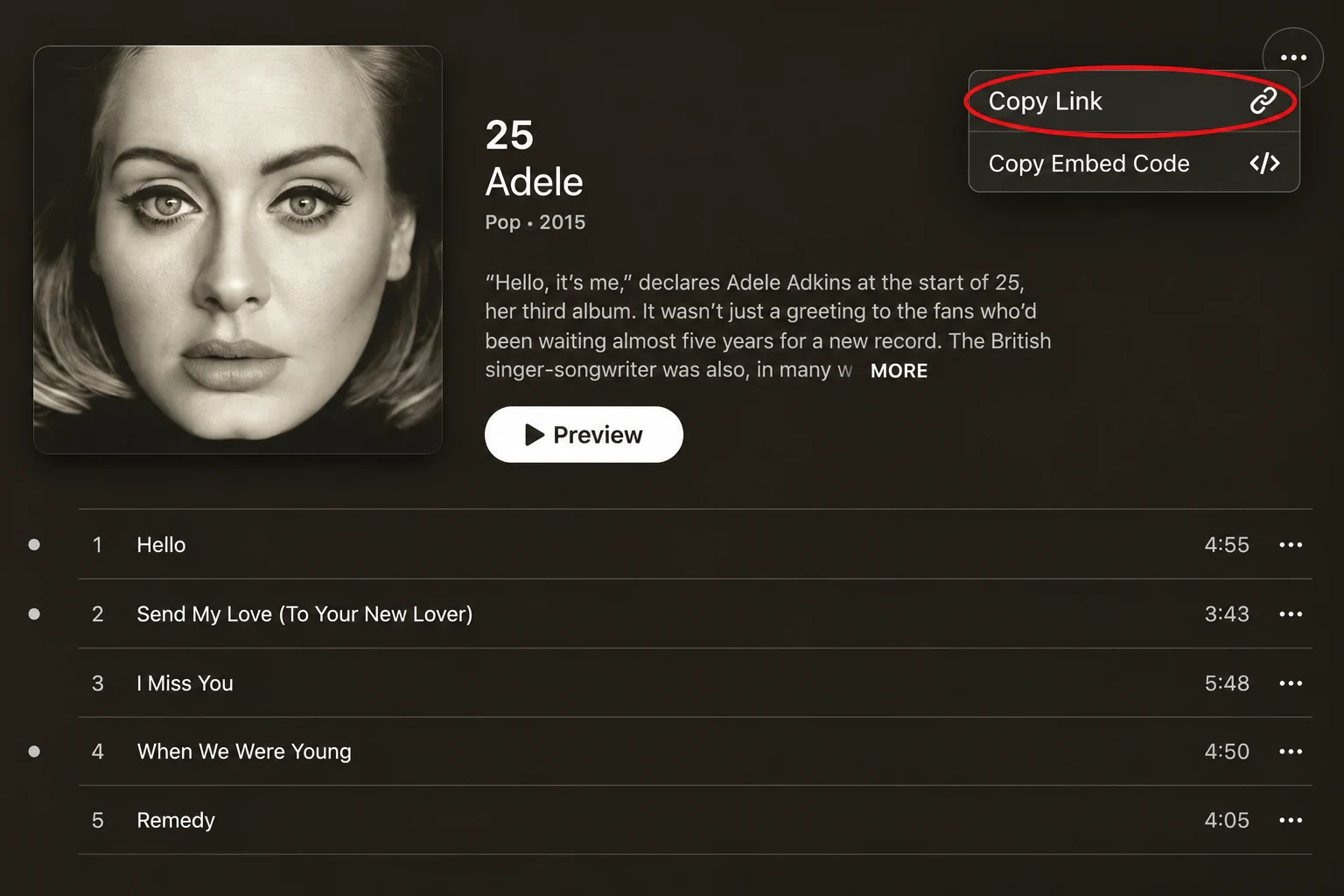
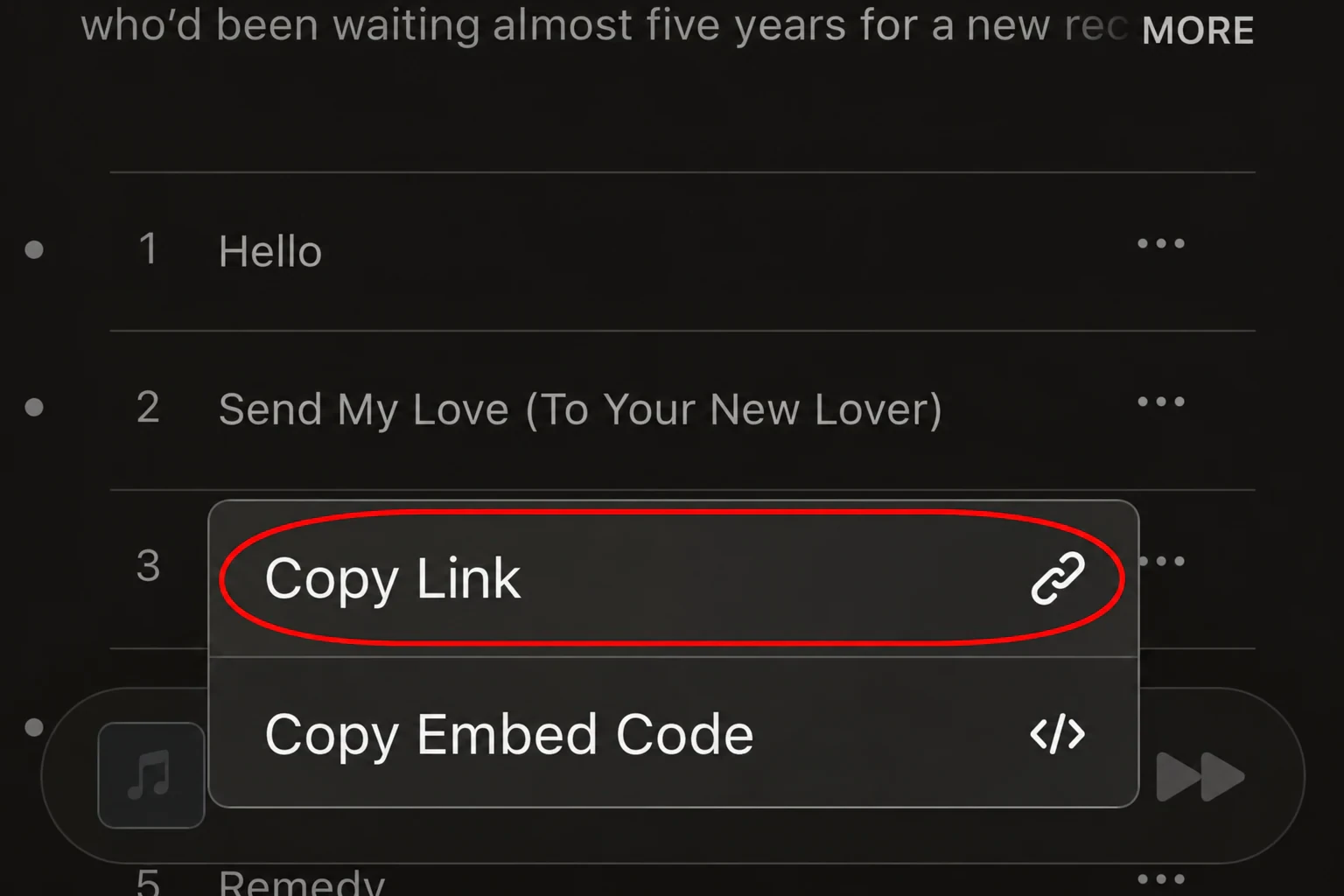
Open a song, album, or playlist in Apple Music. Choose Share, then Copy Link.
02
Open it in MusicFab
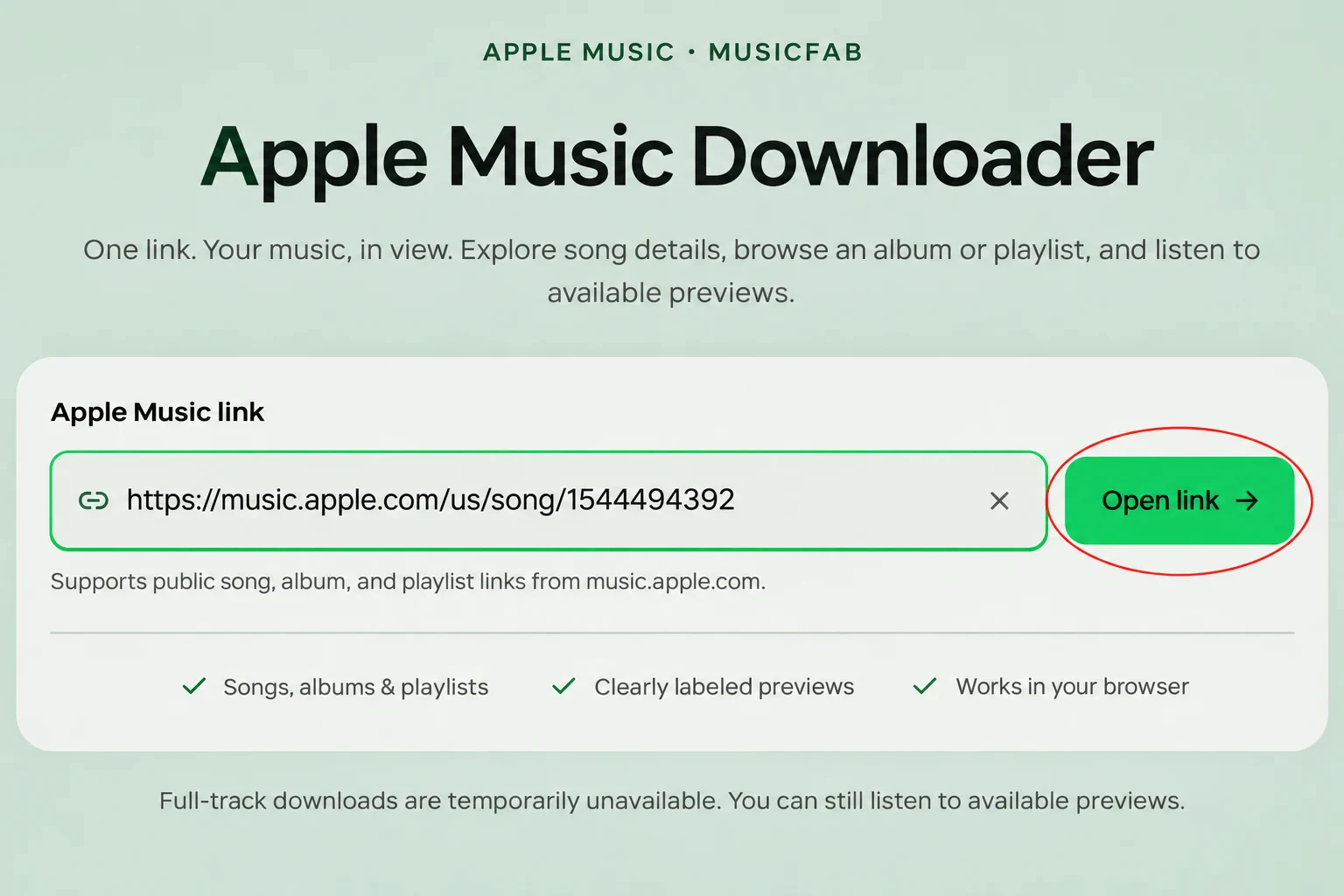
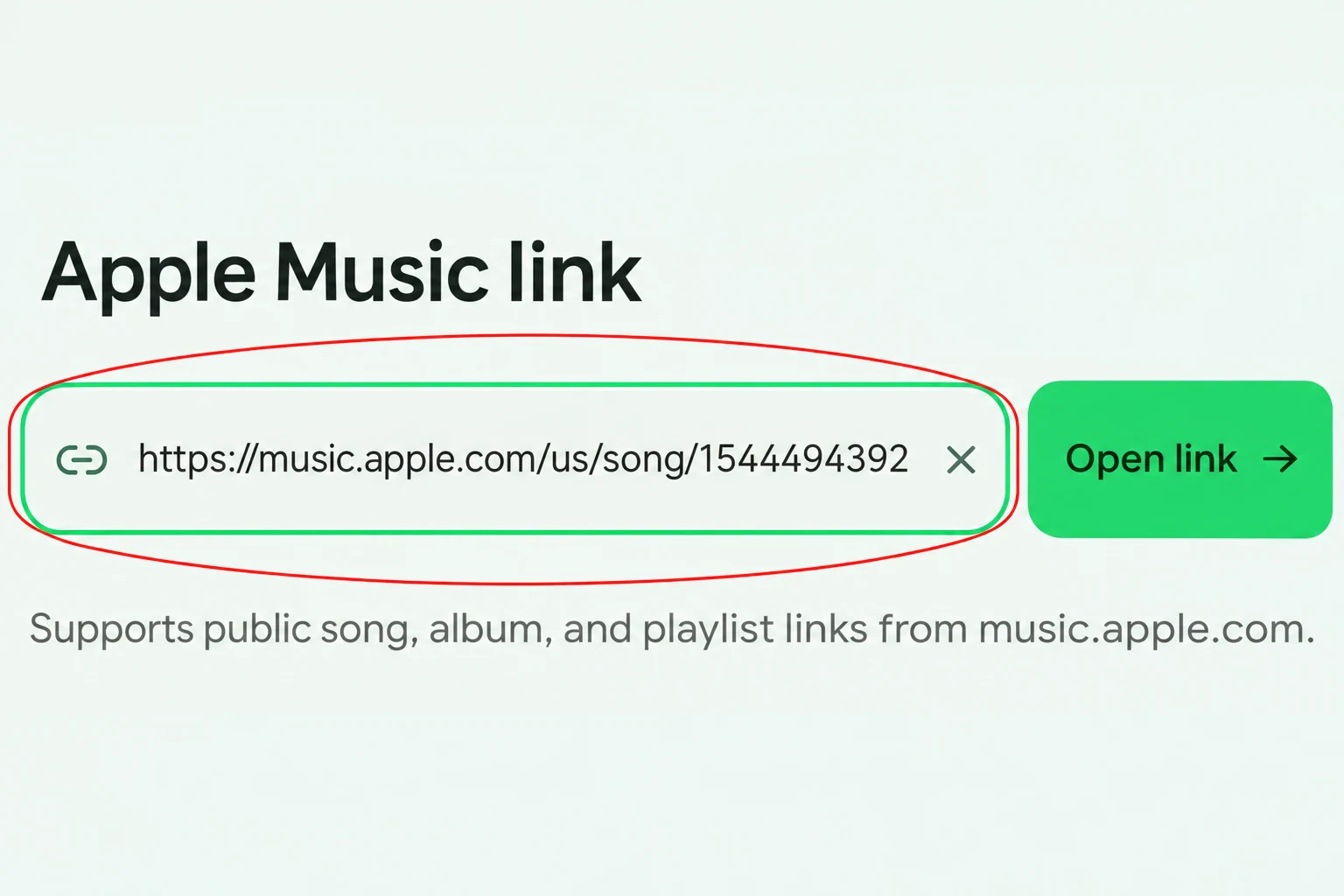
Paste the link above and choose Open link to see the artwork, artist, and track list.
03
Listen and check availability
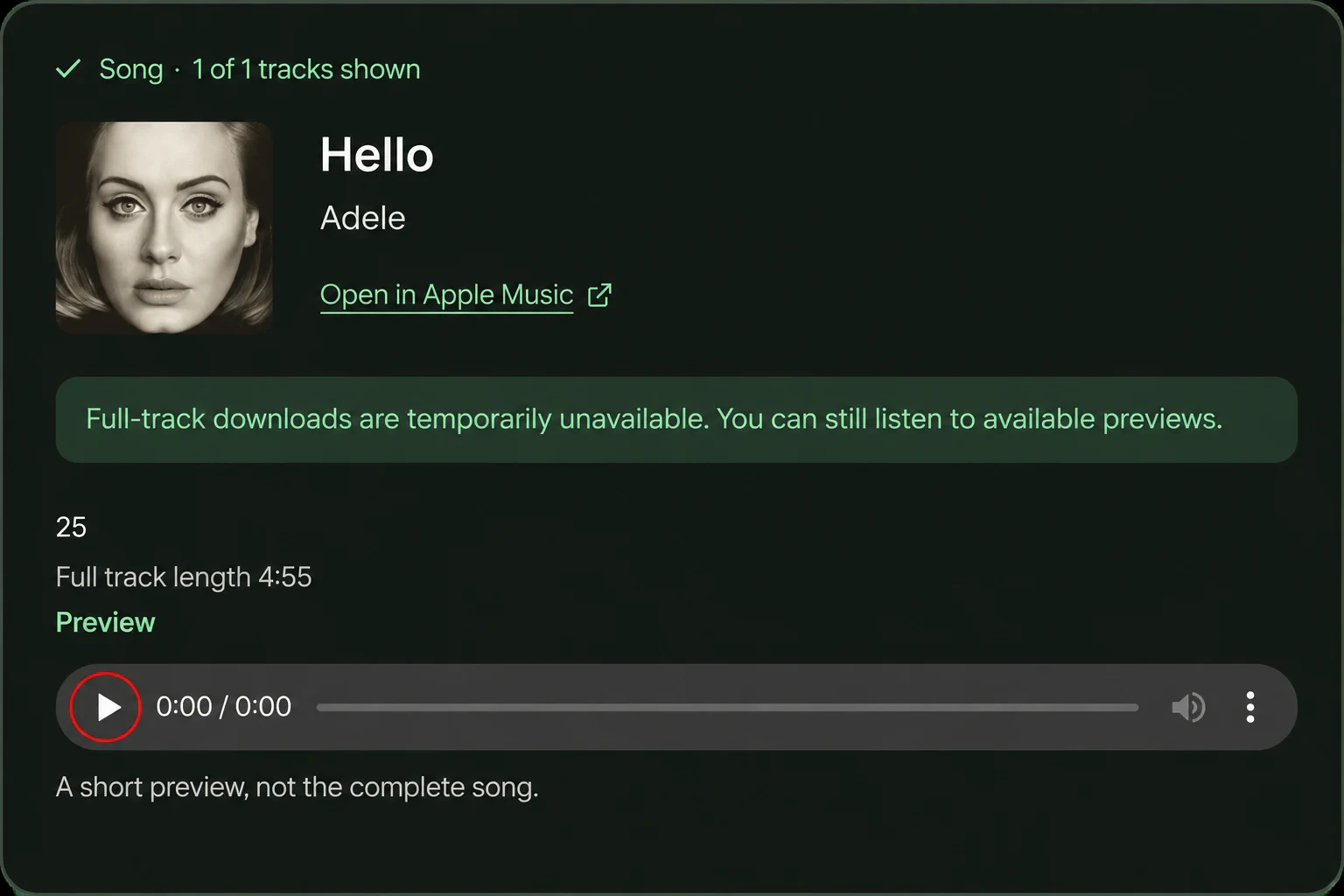
Play the available audio, or choose Download MP3 to prepare a file for the selected song.
One place for songs, albums, and playlists
Open a public music.apple.com URL. MusicFab identifies the supported content type for you.
Apple Music song downloader
Open one song to see its artist, album, artwork, and full length. A song link can also point into an album with a track selected. Check those details before playing an available sample so you know which recording you have opened.
music.apple.com/…/song/…
Apple Music album downloader
Paste an album link to view the release and its returned songs in order. Keep the collection together while you compare track names and durations. Use Load more tracks if the result has additional pages; browsing an album does not start a batch download.
music.apple.com/…/album/…
Apple Music playlist downloader
Use a public playlist link to browse the collection without copying each song URL. The track counter shows the loaded portion of the returned list. Individual previews appear where available, while private library items and artist pages are outside this tool’s supported links.
music.apple.com/…/playlist/…/pl.…
Find the right share link on any device
Copy the music’s share URL rather than its name or a screenshot. The browser and Apple Music app may place sharing controls in different menus.
On Mac or Windows
Use the Apple Music website or Music app on your computer. Start with a public web link.
01
Open the music you want
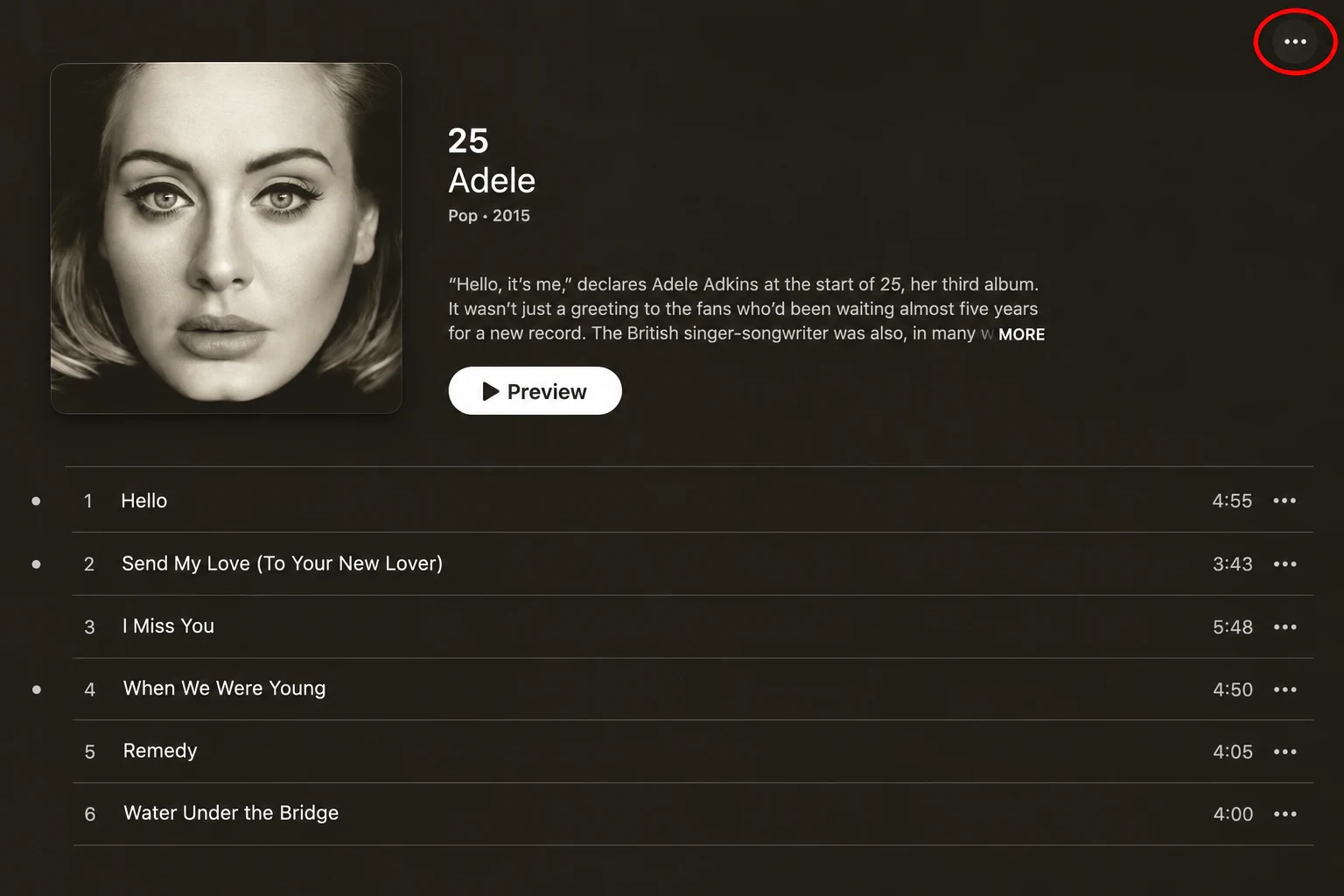
Find the song, album, or playlist in Apple Music. For one track, open its menu rather than the album’s menu.
02
Copy the share URL
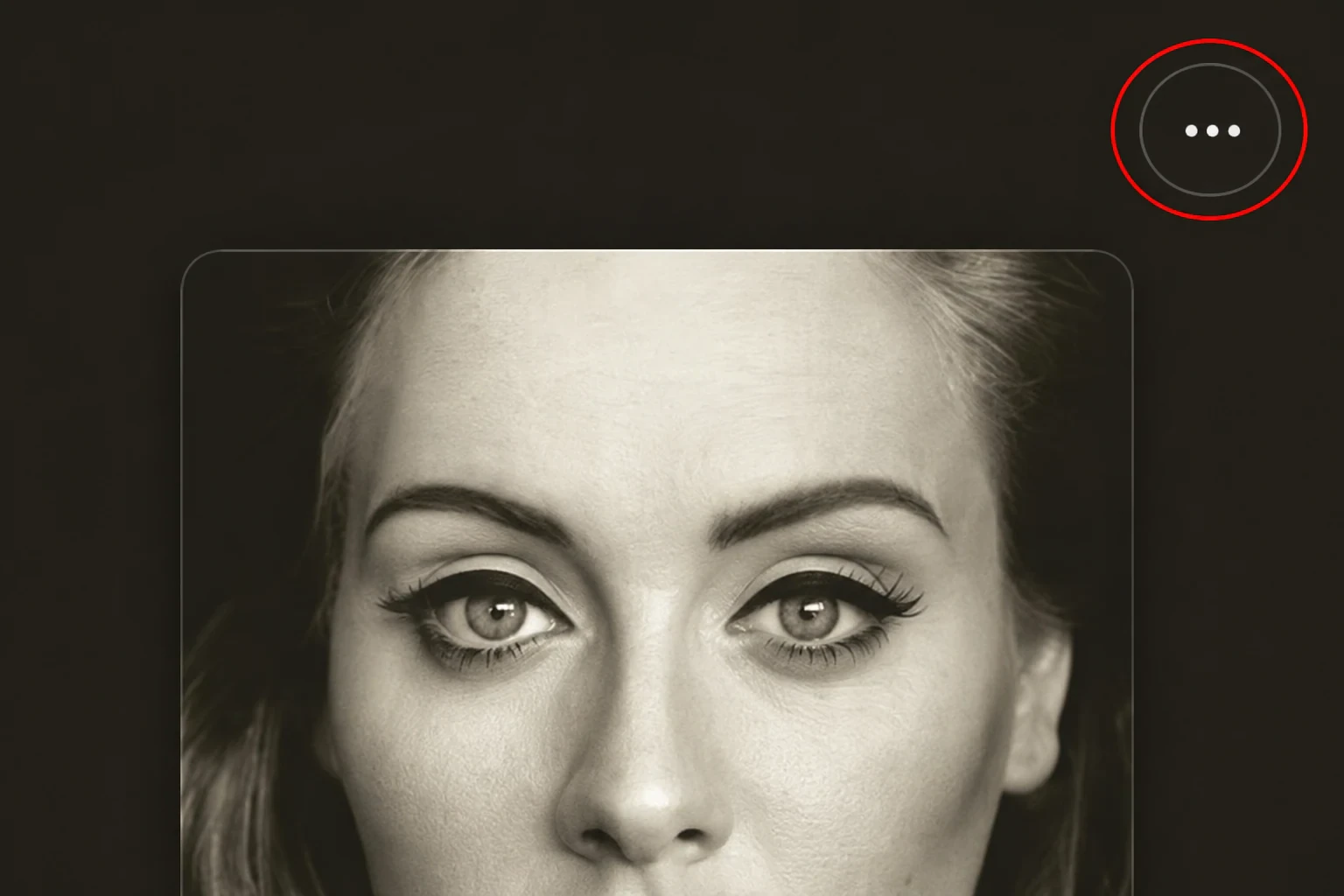
Open More, then Share and Copy Link where shown. On music.apple.com, Copy Link may appear directly. Copy the URL rather than embed code.
03
Paste it into MusicFab
Paste into Apple Music link above, then choose Open link. Check the returned title and artist to confirm the item.
On iPhone or Android
The examples below use music.apple.com in a mobile browser. You can also copy a link from the app, where sharing controls may differ.
01
Find a song or collection
Open the song, album, or playlist on the Apple Music website or app. Choose its public page rather than a private library reference.
02
Use the sharing menu
On the website, open More and choose Copy Link where shown. In the app, look for Share and copy the link.
03
Open the link in your browser
Paste the URL into MusicFab. If Paste link cannot access your clipboard, press and hold the field and use your phone’s Paste action.
Get from a shared link to the right track
A music link is more useful when you can see what it contains. These everyday details help you decide what to explore next.
Recognize the release
Artwork, artist, and album details help distinguish similar releases. Compare them first when a song also has live recordings or alternate versions.
Keep the collection in context
View returned songs in their original order. Browse the collection together instead of going back to copy each single-track link.
Hear an available sample
Play a labeled sample to hear the recording. If a preview is unavailable, continue browsing or open the original Apple Music page.
Take a clear next step
Visit the source with Open in Apple Music. Full-song downloads have a separate action when the service can provide them.
The useful details, without the guesswork
From one track to a longer playlist, the result keeps the music information and available actions easy to follow.
Three public link types
Open a song, album, or playlist from the same field, without selecting a separate mode before pasting a supported URL.
Original cover artwork
See artwork returned with the music details. Missing covers get a placeholder rather than an invented image.
Full track durations
Compare track lengths to help identify versions. The duration describes the full recording, even when only a short preview is available.
More tracks when available
Collections load in pages. Check the counter and Load more tracks action to see whether more returned tracks are available.
A direct route to the source
Open the original Apple Music item to keep exploring, including when a particular preview is missing.
No extension to install
Use these features without adding an extension or desktop installer. This page has no Apple Music password field.
Explore from your phone or computer
Use a current browser with an internet connection. The link workflow stays the same; clipboard and audio controls follow your browser settings.
iPhone and iPad
Copy a public link from Apple Music and open this page in Safari or another current browser. Tap a preview’s play control to start audio; opening the result alone does not start playback.
Android phones and tablets
Paste a public Apple Music URL into your mobile browser. You can view the returned collection and tap available previews without installing a MusicFab APK or browser extension.
Mac
Copy a link from the Music app or Apple Music website, then open it here. A larger screen gives you room to compare artwork, titles, and durations across an album or playlist.
Windows PC
Use a share link from Apple Music on Windows or music.apple.com. Paste with your keyboard if browser clipboard access is blocked, then browse the returned tracks and available samples.
Apple Music to MP3: understand the available options
Opening an Apple Music link retrieves music information. Audio playback and file downloads are separate capabilities, so check the action shown beside a track.
Content or format
Current status
What you can expect
Music details and artwork
Available for supported links
View returned titles, artists, album information, cover artwork, track order, and durations. These are catalog details rather than audio files.
Short audio previews
Available for some tracks
Listen in the browser when a preview is returned. Each player is labeled as a short sample; the audio format comes from the preview provider.
Complete MP3 tracks
When available
Download MP3 prepares a complete matching recording when available. Some songs or versions may not have a verified match.
ZIP, FLAC, or WAV output
Not offered on this page
Collection links open a track list. This page does not export ZIP archives, offer these additional audio formats, or provide an output-quality selector.
A preview is never a complete MP3 download. Artwork and track information do not establish the format or quality of an audio file.
Know exactly what’s available
Find the music behind a shared link before you choose your next step.
01
The details behind every link
See the song title, artist, album, original artwork, and full track length returned for your link. Album and playlist results keep their track order, with more tracks loaded when available.
02
Previews stay previews
Audio playback and MP3 downloads use separate controls. Returned audio is checked before the file is prepared.
Apple Music Downloader FAQ
Can I download complete Apple Music songs right now?
Choose Download MP3 to prepare the available audio for the selected song. MusicFab checks the song details and returned audio before preparing the file. Availability varies by song and version.
Is a preview the same as a full song?
No. A preview is a short sample and may be shorter than the full track length shown beside the song. MusicFab labels every preview and does not offer previews as full-track downloads.
Which Apple Music links can I use?
Paste a public song, album, or playlist URL from music.apple.com. Links to a song within an album are also supported. Private library links, artist pages, and links from other music services are not supported by this tool.
Why can’t I see or preview a particular song?
Some links or previews may be unavailable, including content with regional or catalog restrictions. Try another public link, or use Open in Apple Music to view the original page.
Does the tool load every track in an album or playlist?
Results load in pages. The counter shows how many tracks are currently shown out of the total returned by the service. Choose Load more tracks whenever that action is available.
Do I need to install an app to use this page?
No installation is needed to open a link or listen to an available preview in your browser. This page does not ask you for an Apple Music password.
Is this a free Apple Music Downloader?
Public-link lookup and available preview playback are free. Individual MP3 downloads are available for supported, matching recordings; availability varies by song and version. No installation is needed.
Can I convert Apple Music to MP3, FLAC, or WAV here?
MP3 is offered when a complete matching recording can be prepared. FLAC, WAV, lossless output and bitrate selection are not provided here. Playing a preview does not convert or download the full song.
Can I download an Apple Music playlist or album as a ZIP?
No ZIP or batch-download action is offered on this page. A public album or playlist URL opens a browsable track list with available previews. Use Load more tracks to reveal additional results; that action loads information rather than downloading the collection.
Can I use this on iPhone, iPad, or Android?
Yes. Open this page in a current mobile browser, paste a supported public Apple Music link, and tap Open link. You can view track details and play available previews. If clipboard permission is blocked, use your device’s normal paste action inside the link field.
Does MusicFab work on Mac and Windows without desktop software?
You can open supported links and play available previews in your computer’s browser without installing MusicFab desktop software. Copy the share link from the Music app, Apple Music for Windows, or music.apple.com, then paste it here. This browser workflow does not provide access to a private music library.
Bring your next music link into view
Copy a public song, album, or playlist link and open it above. Find the release details, browse its tracks, and hear the previews available for that music.

 APPLE MUSIC · MUSICFAB